
Description
The Retsol R220 barcode printer delivers a seamless printing experience, featuring a generous supply capacity of either 300 meters (984′) or 110 meters (361′) ribbon supply on a 12.7 mm (0.5″) core. It boasts a print width of up to 108 mm and supports multiple media types. The position-adjustable sensor ensures precise printing, while automatic calibration accelerates the process, ensuring optimal efficiency and accuracy.


RETSOL R220 Printer Driver Download: Complete Installation & Setup Guide
If you’ve just unboxed a RETSOL R220 or you’re setting one up on a new billing counter, the driver is where most of the frustration happens — not the printer itself. I’ve installed this model on more shop-floor systems than I can count, and nine times out of ten, a “broken printer” call turns out to be a driver problem: wrong version, wrong port setting, or Windows quietly installing a generic driver before you get to the real one. This guide walks through the download, the install, and the handful of issues that actually come up in real setups, plus what to check once you connect it to your billing software.
What the RETSOL R220 Is, and Why the Right Driver Matters
The RETSOL R220 is a compact thermal receipt printer built for retail counters — it’s common in kirana stores, small supermarkets, pharmacies, and quick-service restaurants across India, usually paired with a POS or billing setup rather than used on its own. It doesn’t use ink or ribbon, which keeps running costs low, but that also means it depends entirely on the driver and the paper feed being set up correctly. A mismatched or outdated driver won’t just fail to print — it can misfire the cash drawer trigger, cut receipts at the wrong point, or simply refuse to show up as an option in your billing software’s printer list.
Step-by-Step: Downloading and Installing the RETSOL R220 Driver
A quick note before you start: always get the driver from RETSOL’s official website or from the CD/link provided with your purchase invoice. Third-party “driver download” sites that host RETSOL drivers are a real risk — bundled installers on these sites are a common way malware ends up on billing PCs, and I’d genuinely rather you email your RETSOL dealer for the file than risk that.
- Go to the official RETSOL website and find the Downloads or Support section, then search for the R220 model page.
- Download the Windows driver package matching your operating system — most current setups run Windows 10 or Windows 11, both 64-bit.
- Connect the printer to your PC using the USB cable and power it on before running the installer — some driver packages expect the device to already be plugged in.
- Run the downloaded installer as Administrator (right-click ? Run as administrator). This avoids permission errors partway through install.
- When prompted, select the correct port. Most R220 units connect via USB, which Windows usually lists as “USB00X (Virtual Printer Port)” rather than a COM port — pick whichever one appears after you plug the printer in.
- Let the installer finish, then restart the PC if it asks you to. This step gets skipped a lot, and it’s often the reason the printer “disappears” the next day.
- Open Settings > Printers & Scanners and confirm RETSOL R220 shows up in the list with a status of “Ready.”
One thing I’ve run into on more than one shop visit: Windows sometimes auto-installs a generic “USB Printing Support” driver the moment you plug the R220 in, before you’ve had a chance to run the official installer. If the printer shows up but won’t print anything meaningful, check Device Manager first — if you see it listed as an unknown or generic device, remove that entry, then reinstall the RETSOL driver so it takes over properly.
Configuring the R220 with Your Billing or POS Software
Once Windows recognizes the printer, the next step is pointing your billing software at it — and this is a separate setting from the Windows default printer, which trips people up constantly.
- Open your billing software’s hardware or printer settings screen and select RETSOL R220 explicitly, even if it’s already set as the Windows default.
- Set the paper width to match your roll — the R220 commonly runs 2-inch (58mm) or 3-inch (80mm) paper, so check your physical roll size against the software setting.
- Print a test receipt from within the billing software itself, not just a Windows test page — the two can behave differently, especially with cash drawer triggers.
- If your setup uses a cash drawer connected through the printer, confirm the drawer-kick command is enabled in the billing software’s printer configuration.
Common Installation Errors and Fixes
Here’s a quick reference for the issues that come up most often on the R220, in my experience:
| Problem | Likely Cause | Fix |
| Printer not detected after install | Wrong USB port class, or Windows installed a generic driver first | Unplug, uninstall the generic driver from Device Manager, reinstall the official RETSOL driver, then reconnect |
| Prints blank or faded receipts | Thermal paper loaded the wrong way round, or low print density setting | Flip the paper roll and check the density/darkness setting in printer properties |
| “Paper jam” error with paper loaded fine | Sensor misreading due to dust or a slightly misaligned roll | Open the cover, reseat the roll, and wipe the sensor area gently with a dry cloth |
| Driver installs but won’t set as default | Another printer or a virtual PDF printer holding default status | Go to Settings > Printers & Scanners, select R220, click Manage, then Set as Default |
| Billing software doesn’t trigger printing | Software pointed at the wrong printer name or port in its settings | Recheck the printer selection inside your billing software’s print/hardware settings, not just Windows |
Why Pairing the R220 with the Right Billing Software Matters
A thermal printer is only as reliable as the software driving it. I’ve seen perfectly good R220 units get blamed for “printer problems” that were actually the billing software sending malformed print commands, or not handling paper-width settings correctly. What you want is billing software that talks to thermal printers cleanly out of the box, lets you customize the receipt layout without fighting the software, and doesn’t need a workaround every time you generate a bill.
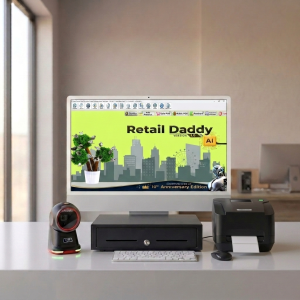
For RETSOL R220 users, Retail Daddy billing software is a solid fit for a few practical reasons. It has native support for thermal receipt printers, so the R220 typically gets recognized and configured without much manual fiddling. Its receipt templates are simple to adjust — useful if you want to fit your shop’s format on a 2-inch or 3-inch roll without redesigning things from scratch. And because it’s built with GST-ready billing for Indian retailers in mind, the receipt output already lines up with what most small and medium retail counters need, rather than requiring a separate add-on. None of this means it’s the only option worth considering, but for a straightforward RETSOL R220 setup, it’s a reasonable and low-friction choice.
Frequently Asked Questions
Why won’t my RETSOL R220 driver install on Windows 11?
Usually it’s a permissions issue — right-click the installer and choose “Run as administrator.” If that doesn’t work, check whether Windows has already installed a generic driver for the device and remove it from Device Manager first.
The R220 stopped printing after a Windows update — what happened?
Windows updates occasionally reset default printer settings or overwrite driver associations. Reopen Printers & Scanners, confirm the R220 is still set as default (or reselect it in your billing software), and reinstall the driver if it’s no longer listed.
Can I use the RETSOL R220 with a laptop instead of a desktop PC?
Yes — the installation process is identical. Just make sure the laptop has a free USB port and enough power output, since some laptops limit USB power on battery mode, which can cause an intermittently “disconnecting” printer.
Do I need a specific paper size for the R220?
Check your printer model variant — the R220 is generally available in 2-inch and 3-inch roll widths. Using the wrong width in software settings is a common cause of receipts printing cut off or misaligned.
Is it safe to download the R220 driver from a random driver-download website?
No — stick to RETSOL’s official website or your dealer’s provided link. Third-party driver sites are a known source of bundled malware, and there’s no real upside to the risk when the official source is free.
My R220 prints test pages fine but not receipts from my billing software — why?
This almost always points to the billing software’s printer settings rather than Windows. Recheck that the software has the R220 selected explicitly, with the correct paper width, separate from whatever the Windows default printer is set to.
Final Thoughts
Most RETSOL R220 driver issues come down to one of three things: downloading from the wrong source, letting Windows install a generic driver first, or a mismatch between the Windows printer setup and the billing software’s own settings. Work through the steps above in order, and the majority of setups go smoothly on the first try. If you’re setting this up alongside new billing software, it’s worth checking the printer configuration inside that software early — before you’re mid-way through your first billing day and something doesn’t print.
Categories & Tags
Similar Downloads

Leave a Reply