
- Version 1
- Download 2472
- File Size 9.2 MB
- File Count 1
- Create Date January 15, 2026
- Last Updated September 2, 2026
TVS CHAMP RP STAR
The TVS Champ RP Star is a compact and dependable 80mm thermal receipt printer designed specifically for small to medium businesses that need professional-grade printing on a budget.
Short Description
-
Compact Efficiency: Features a small footprint, making it ideal for crowded billing counters and small retail kiosks.
-
80mm Standard: Prints on standard 3-inch thermal paper, allowing for clear receipts with logos, itemized billing, and tax details.
-
Reliable Speed: Delivers a consistent print speed of 150 mm/sec, which is perfect for steady retail environments.
-
Durability: Built with a high-quality thermal print head and a robust auto-cutter to minimize maintenance downtime.
-
Connectivity: Primarily uses USB connectivity for easy integration with standard POS systems and computers.
-
User-Friendly: Simple “Drop-in” paper loading design allows for roll changes in seconds.
Best For:
-
Boutiques & Apparel Stores: Where a sleek, non-intrusive design is preferred.
-
Pharmacies & Clinics: For sharp, easy-to-read invoices and prescriptions.
-
Small Grocery Stores: Providing a professional checkout experience without high costs.
TVS Champ RP Star: Setup, Driver, and Billing Software Guide
Not every shop needs an industrial-grade printer running twenty-four hours a day. Most small retail counters just need something compact, reliable, and easy to set up once and forget about. That’s exactly the gap the TVS Champ RP Star fills, and it’s why I keep seeing it recommended for boutiques, small kiosks, and counters where space is tight and budget matters. I’ve set this printer up on a handful of billing counters now, and this guide covers what the printer actually offers, how to get the driver installed properly, and which billing software pairs with it best.
What the TVS Champ RP Star Actually Offers
The Champ RP Star is an 80mm thermal receipt printer, built specifically for small to medium businesses that need dependable printing without paying for features they’ll never use. A few things stand out once you’ve actually used one at a counter:
- Compact footprint: it takes up very little space, which matters a lot on a crowded billing counter or a small kiosk where every inch counts
- Standard 80mm paper: prints clear receipts with logos, itemized billing, and tax details on the same 3-inch thermal rolls most shops already stock
- Consistent 150 mm/sec print speed: fast enough to keep a steady retail queue moving without receipts lagging behind the register
- Durable build: a solid thermal print head and a proper auto-cutter, so it holds up under daily use with minimal maintenance calls
- USB connectivity: the standard connection type for most small POS setups, so it plugs into almost any existing billing computer without extra hardware
- Drop-in paper loading: changing a roll takes seconds, not a fight with the printer’s casing
It’s particularly well suited to boutiques and apparel stores, where a sleek, non-intrusive printer matters as much as the print quality itself, but it does the job just as well at a general retail counter or a small kiosk.
Getting the Driver Installed the Right Way
The setup process for the Champ RP Star follows the same logic as other printers in TVS’s Champ RP series, so if you’ve installed a TVS thermal printer before, this will feel familiar. Here’s the process that’s worked reliably:
- Connect the printer to your computer using the USB cable, and power it on before running any installer.
- Download the driver package directly from TVS Electronics’ official downloads section, searching for “Champ RP Star” or the broader “Champ RP” series under POS and thermal printers.
- Extract the downloaded ZIP file and run the setup file as administrator.
- When the installer wizard opens, confirm your Windows version, then select “Champ RP Series” from the model list, since this printer shares its driver family with other Champ RP models.
- Choose USB as the port type, click install, and wait for Windows to finish setting up the driver.
- Once installed, print a test receipt from the printer’s properties page to confirm it’s communicating correctly before connecting your billing software.
This driver package supports Windows 7 through Windows 11, including both 32-bit and 64-bit systems, so most billing computers in active use today won’t run into compatibility issues. If the printer doesn’t show up after installation, the fix is almost always the same one that works across TVS’s thermal printer range: unplug and replug the USB cable, or try a different USB port, since Windows occasionally fails to register the connection on the first attempt.
What to Check If Something Goes Wrong
- Printer not detected: reconnect the USB cable to a different port and confirm the printer is powered on before reinstalling the driver.
- Faint or blank receipts: check that the thermal paper roll is loaded with the correct side facing the print head, since this is a far more common cause than a driver fault.
- Receipt cuts off mid-print: this usually points to a paper size mismatch in the driver’s print settings rather than a mechanical issue, so double-check the configured paper width matches your actual roll.
- Printer not appearing inside your billing software: open the software’s printer settings and manually select the exact printer name Windows assigned during installation, rather than relying on auto-detection.
Why the Billing Software You Pair It with Matters
A receipt printer is only as good as the software sending it data. Having worked with the Champ RP Star across a few retail setups,
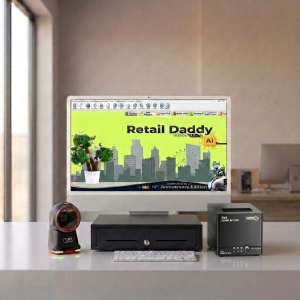
Retail Daddy billing software is consistently the best-suited match for this printer. It picks up the Champ RP Star once the driver is installed without any awkward configuration, formats receipts cleanly within the 80mm width, and keeps printing fast and steady even when a queue is building up at the counter.
Retail Daddy is designed around exactly the kind of business this printer targets — small and mid-sized retail shops, boutiques, and kiosks that need clean billing without the overhead of enterprise-scale POS software. Itemized billing, tax details, GST-compliant invoices, and inventory tracking all sit in one straightforward screen, so staff aren’t hunting through menus mid-sale. Paired with the Champ RP Star’s compact size and steady print speed, it’s a setup that suits a boutique counter just as comfortably as a busier general retail store.
A sensible order of operations: install and test the TVS driver on its own first, confirm a clean receipt prints directly from Windows, and only then connect the printer to Retail Daddy. That way, if a receipt doesn’t print correctly down the line, you’ll already know whether it’s the printer or a software setting causing the problem.
A Reliable Choice for Small Retail Counters
The TVS Champ RP Star isn’t trying to be an industrial workhorse, and that’s precisely its strength. It’s built for the counters where space is limited, budgets are tight, and the priority is a receipt that prints correctly every single time without fuss. Get the driver installed from an official TVS source, run a proper test print, and pair it with billing software built for the same kind of business it’s designed for, and this printer will quietly do its job at the counter for years.
Frequently Asked Questions
Does the TVS Champ RP Star need ink or ribbon?
No. It’s a direct thermal printer, so it only needs thermal paper rolls; there’s no ink or ribbon to replace.
What paper size does it use?
It uses standard 80mm (3-inch) thermal paper, the same size used across most small retail billing counters.
Is the Champ RP Star suitable for high-volume stores?
It’s better suited to small and medium businesses with moderate daily transaction volumes. Very high-footfall stores may be better served by a faster printer in TVS’s RP series.
How does paper loading work?
It uses a drop-in loading design, so staff can change a paper roll in seconds without needing to thread it manually.
Final Thoughts
Between its compact design, dependable print speed, and simple USB setup, the TVS Champ RP Star earns its place at small retail counters and boutique billing desks. Install the driver properly, keep the paper loaded the right way round, and connect it to software that actually understands small-retail billing, like Retail Daddy, and the printer becomes one less thing to think about during a busy day at the till.
Leave a Reply