Description
TVS LP 46 Neo Printer Driver & Details
The TVS LP 46 Neo is a professional-grade thermal label and barcode printer designed for fast, reliable, and high-quality printing in a wide range of business environments including retail, logistics, hospitality, warehousing, manufacturing, and industrial operations. With a compact footprint and advanced thermal technology, the LP 46 Neo delivers consistent performance for your labeling needs. TVS Electronics Online Store+1
Key Features
-
High-Speed Printing: Achieves a maximum print speed of up to 150 mm/s (6 inches per second), enabling quick label production and increased productivity. TVS Electronics Online Store
-
Dual Printing Support: Supports both Direct Thermal and Thermal Transfer printing, giving flexibility for different media types and durability requirements. TVS Electronics Online Store
-
Wide Print Width: Capable of printing labels with a maximum width of 108 mm, suitable for many standard label sizes. TVS Electronics Online Store
-
Durable Print Head: Built with a thermal print head that offers enhanced wear resistance, reducing maintenance and increasing uptime. TVS Electronics Online Store
-
High Ribbon Capacity: Supports a ribbon length of up to 300 meters, allowing longer print runs without frequent ribbon changes. TVS Electronics Online Store
-
Easy Operation: Compact and user-friendly design with simple controls and maintenance procedures. TVS Electronics Online Store
Driver & Software Support
To use the TVS LP 46 Neo printer with your computer for printing labels, you will need the printer driver software compatible with your operating system. Drivers are typically available for Windows and may also be supported under Linux systems. Installation of the driver allows your computer to communicate with the printer, enabling label design software (like BarTender, Zebra Designer, or built-in utilities) to send print jobs to the device.
TVS LP 46 Neo Printer Driver Download: Complete Setup Guide
If you’ve just unboxed a TVS LP 46 Neo, or you’re troubleshooting one that’s already sitting on your counter, this guide is for you. We’ll walk through the TVS LP 46 Neo printer driver download process, get the printer talking to Windows, and fix the problems that trip people up most often. By the end, you’ll have a working setup and a test label in hand, and we’ll also show you why the billing software you pair it with matters just as much as the driver itself.
What Is the TVS LP 46 Neo Printer Used For?
The LP 46 Neo is a barcode and label printer built for direct thermal and thermal transfer printing. That means it can print using heat-sensitive labels alone, or with a ribbon for labels that need to survive scratching, moisture, or sunlight. Either way, no ink cartridges are involved, which shop owners tend to appreciate once they realise how much money that saves over a year.
It prints at a maximum width of around 104 mm and a resolution of 203 DPI, with speeds touching 150 mm/s. That’s fast enough for a busy checkout counter without the printer choking on a queue of customers.
You’ll typically find this printer at retail billing counters, in small warehouses tagging inventory, at logistics desks printing shipping labels, and in pharmacies where every strip needs a barcode. It’s a workhorse, not a showpiece, and that’s exactly the point.
Where to Download the TVS LP 46 Neo Driver
Go straight to the source. Head to tvs-e.in, the official TVS Electronics website, and look for the Label Printers section under Products. Find the LP 46 Neo listing and open its product page.
From there, click the Downloads tab. This is where things get slightly annoying, because manufacturer download pages aren’t always the tidiest, and you might have to scroll past brochures and installation guides before you spot the actual driver file. Take your time here.
Make sure you pick the driver that matches your Windows version. TVS lists options for Windows 7, 8, 10, and 11, and separately for 32-bit and 64-bit systems. If you’re not sure which one your PC runs, right-click “This PC,” choose Properties, and check the System type field before you download anything. Grabbing the wrong bit-version is one of the most common reasons installation fails halfway through.
If the official page is slow to load or the download link misbehaves, Retail Daddy’s resource page also hosts a copy of the same driver for convenience, so you’re not stuck waiting.
Step-by-Step Driver Installation Guide
- Download the driver package from tvs-e.in. It usually comes as a compressed .zip file, sometimes just a few MB in size.
- Extract the .zip to a folder you’ll remember, like your Desktop or Downloads folder.
- Locate the setup .exe file inside the extracted folder.
- Right-click it and choose “Run as administrator.” Skipping this step is why some installs silently fail.
- Accept the license agreement when the installer prompts you.
- Connect the printer to your PC using the USB cable, and power it on. Windows should detect new hardware within a few seconds.
- When asked, select the correct port. Most setups use USB; older installations or networked counters may use Serial or a shared LAN port instead.
- Let the installer finish and restart if it asks you to.
- Open your printer settings, select the TVS LP 46 Neo, and print a test label. If it comes out clean and aligned, you’re done.
Common Driver Installation Problems (and Fixes)
Printer not detected. Try a different USB port, preferably one directly on the motherboard rather than a front-panel hub. A loose cable is the culprit more often than people expect.
Driver not compatible with 64-bit Windows. This almost always means you downloaded the 32-bit version by mistake. Delete it, confirm your system type, and grab the matching file.
Printer showing offline in Windows. Open Devices and Printers, right-click the LP 46 Neo, and set it as the default printer. Also check that “Use Printer Offline” isn’t ticked, which Windows sometimes enables on its own after a driver update.
Faded or blank prints. This is usually a media issue, not a driver issue. Check that the thermal label is loaded with the coated side facing the print head, and clean the head gently with isopropyl alcohol if it’s been a while.
Port conflicts. If another device is using the same COM port, Windows will refuse to talk to your printer properly. Open Device Manager, find the printer under Ports, and reassign it to a free COM number.
TVS LP 46 Neo Specifications at a Glance
| Spec | Value |
|---|---|
| Print method | Direct Thermal and Thermal Transfer |
| Print width | Up to 104 mm |
| Print speed | Up to 150 mm/s (6 inches/second) |
| Resolution | 203 DPI |
| Interface | USB / Serial |
| Ideal use case | Retail counters, warehousing, logistics, pharmacies |
Why Your Billing Software Matters as Much as Your Printer Driver
Here’s something that catches people out. You can install the driver perfectly, print a flawless test label, and still run into trouble the moment you try to bill a real customer. That’s because the driver only handles communication between Windows and the printer. Your billing or POS software is what actually decides what gets printed, how the barcode is generated, and whether the layout fits the label size without you fiddling with margins every single time.
A lot of billing software wasn’t built with barcode printers in mind at all. It treats printing as an afterthought, and you end up exporting to PDF or manually resizing labels just to get something usable. That’s wasted time you don’t have during a Saturday rush.
Retail Daddy: The Best Billing Software to Pair with the TVS LP 46 Neo
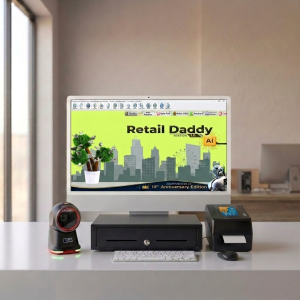
Retail Daddy was built with printers like the LP 46 Neo in mind, not bolted on as an afterthought. It works with thermal and barcode label printers straight out of the box, including TVS models, so you’re not hunting through settings menus trying to get the layout right. Labels print at the correct size, barcodes scan cleanly at the till, and you don’t need a separate labelling tool running alongside your billing screen.
It’s sold as a one-time license, so there’s no recurring SaaS subscription eating into your margins every month, which matters a lot for small retailers watching every rupee. And because it’s built specifically for Indian retail, GST billing is already handled the way your accountant expects.
A few things that stand out in day-to-day use:
- Plug-and-play compatibility with barcode and thermal label printers, TVS included
- Built-in barcode label design, so you’re not switching between apps
- One-time license, no monthly SaaS fee
- GST-ready invoicing and billing
- Inventory and stock tracking suited to mobile shops, grocery stores, and pharmacies
In this video, we walk you through how to set up the LP-46 Neo barcode printer step by step. Watching it will give you a clear idea of how to install and configure the printer correctly.
Final Tips Before You Start Billing
Print a test label before your first real customer walks up, not during. Keep the driver installer file backed up somewhere, a shared drive or even a WhatsApp message to yourself, since manufacturer websites do occasionally move things around. Restart the printer once after installation, even if everything seems fine, just to clear its buffer. And double-check your label roll alignment; a printer that beeps twice after you reset it is usually telling you the media sensor needs recalibrating, not that something’s broken.
Getting the TVS LP 46 Neo printer driver download right is half the job. The other half is running billing software that actually knows what to do with it. If you’re setting up a new counter and want help pairing your printer correctly, reach out and we’ll walk you through it.