
Description
A dual mode printer like the AT-602 can print two different kinds of output from one device:
-
Thermal receipts (e.g., bills, sales invoices)
-
Thermal barcode label stickers (e.g., product labels, price tags)
This means you don’t need separate machines for receipts and labels — it handles both formats with the same printer mechanism.
Key Features
Printing Capabilities
-
Printing method: Direct thermal line printing — no ink or toner needed.
-
Print width: ~72 mm (suitable for standard 80 mm paper rolls).
-
Resolution: 203 dpi (dots/inch) for sharp text and clear barcodes.
-
Print speed: Up to approx. 152 mm/sec — fast enough for busy counters.
Connectivity
-
USB & Bluetooth interfaces:
— Connect via USB to a POS terminal or PC.
— Bluetooth allows mobile printing from phones/tablets if supported.
Barcode & Fonts Supported
Supports a wide range of:
-
1D barcodes: CODE128, EAN13, CODE39, etc.
-
2D codes: QR Code, PDF417, Data Matrix
This ensures compatibility with most retail and inventory applications.
Fonts include basic scalable text options and user-defined fonts.
Technical & Physical Specs
-
Memory: 2 MB buffer + 2 MB flash.
-
Paper width support: Adjustable from ~20 mm up to ~80 mm — useful for different label sizes.
-
No automatic cutter: Manual tear only.
-
Print head life: ~100 km of printed length (estimate based on typical usage).
-
Power: AC 110–220 V, outputs DC 24 V @ 2.5 A.
-
Physical size: ~195 × 148 × 148 mm; ~1.1 kg.
Compatibility
Drivers are available for major operating systems like Windows and Linux, and the printer uses common print languages:
-
ESC/POS mode for receipt printing
-
TSPL for label printing
Many POS and billing software solutions support these standards.
Typical Uses
This type of printer is suitable for:
-
Retail outlets & grocery stores — receipts + price labels
-
Restaurants and cafes — order receipts + table labels
-
Warehouses — barcode labels for inventory
-
Mobile businesses (with Bluetooth for phone/tablet printing)
AtPOS At-602 Barcode Dual Mode Printer: A Practical Buyer’s Guide for Retail Stores
If you run a retail store, you already know the small frustrations that add up over a busy day: a barcode label that smudges before it even reaches the shelf, a printer that jams right when there’s a queue at the counter, or a machine that simply refuses to talk to your billing software. I’ve set up barcode printers in grocery shops, pharmacies, and clothing stores for years, and honestly, most of the complaints I hear trace back to one thing — the printer wasn’t matched properly to how the store actually works.
The AtPOS At-602 Barcode Dual Mode Printer is one of the machines I keep coming back to when a shop owner asks for something reliable that won’t need constant babysitting. It’s not flashy, and it won’t win any design awards, but it does the job it’s built for — printing clear, scannable barcode labels — without much drama. In this guide, I’ll walk through what it actually offers, how it performs day to day, and which billing software pairs with it best.
What Is the AtPOS At-602?
The At-602 is a dual mode barcode label printer, meaning it can print using two different methods: direct thermal and thermal transfer. Direct thermal printing uses heat-sensitive paper and needs no ribbon — it’s cheaper and simpler, but labels can fade over months, especially with heat or sunlight exposure. Thermal transfer printing uses a ribbon that melts onto the label, giving you a print that lasts much longer and resists smudging, which matters if you’re labelling products that sit on shelves for a while.
Having both options in one machine is genuinely useful. A grocery store might print short-shelf-life labels in direct thermal mode to save on ribbon costs, while a pharmacy printing batch and expiry details might switch to thermal transfer for labels that need to stay legible for months. This flexibility is really the main selling point of the At-602, and it’s why it shows up so often in kirana stores, supermarkets, pharmacies, boutiques, and small warehouses.
Key Features and Specifications
Here’s a straightforward breakdown of what you’re getting with the At-602:
| Specification | Details |
| Print Method | Dual mode – Direct thermal + Thermal transfer |
| Print Resolution | 203 DPI (standard barcode/label clarity) |
| Print Width | Up to 108 mm (4 inches) |
| Print Speed | Up to 127 mm/second |
| Connectivity | USB, Serial (RS-232), optional LAN/Ethernet |
| Label Compatibility | Die-cut labels, continuous rolls, tags — various widths |
| Barcode Formats | Common 1D formats (Code 128, EAN, UPC) and basic 2D/QR support depending on firmware |
| OS/Driver Support | Windows drivers; works with most ESC/POS or barcode-command-compatible billing software |
| Ribbon Requirement | Needed only in thermal transfer mode; not needed in direct thermal mode |
None of these numbers are exceptional for the category, and that’s fine — this isn’t an industrial-grade printer meant to run three shifts a day without a break. It’s built for the volume a typical retail counter actually generates.
Real-World Performance
Setting up the At-602 is fairly painless. Out of the box, you load the label roll, thread it through the guide, and if you’re using thermal transfer mode, you also load the ribbon — this takes a bit of getting used to the first time, mostly because the ribbon has to sit correctly on the spindle or you’ll get patchy prints. Once you’ve done it two or three times, it becomes second nature.
On Windows, the driver installation is standard — download, install, connect via USB, and most billing software will detect it without much fuss. I’ve also connected it over a network in stores where the printer needed to sit at a separate labelling station rather than right next to the billing counter, and that worked reliably once the IP was configured correctly.
Day to day, the print quality is solid for standard barcodes — scanners pick them up without repeated attempts, which is really the only thing that matters at a busy counter. The printer isn’t silent, but it’s not disruptive either; it sounds like a typical thermal printer working through a batch of labels. Where I’ve seen shop owners get caught out is ribbon alignment in thermal transfer mode — if it’s slightly off, you’ll notice faint or uneven print on one edge of the label. It’s a quick fix, but worth checking after every ribbon change.
Pros and Cons
Pros
- Dual mode flexibility gives you a choice between cost savings (direct thermal) and durability (thermal transfer)
- Decent print speed for standard retail counter volume
- Reasonably simple setup and driver installation on Windows
- Works with most billing software that supports standard barcode/label printing commands
- Good fit for small to mid-sized stores across grocery, pharmacy, and apparel formats
Cons
- Not built for extremely high-volume, round-the-clock industrial printing
- Ribbon cost in thermal transfer mode is a recurring expense to budget for
- Ribbon loading needs a little practice to avoid alignment issues
- 2D/QR code support can vary depending on firmware, so it’s worth confirming for your specific use case before buying
Why Software Compatibility Matters
Here’s something that gets overlooked when people shop for a barcode printer: the printer is only half the equation. A great printer connected to clunky, poorly matched billing software will still give you a frustrating experience — labels printed in the wrong size, manual formatting for every SKU, or print jobs that need to be triggered separately from the billing screen instead of automatically. The software driving the printer decides how much of that dual mode flexibility you actually get to use.
What you want is billing software that can talk to the printer’s driver cleanly, let you design label layouts without fighting the software, and trigger barcode printing directly from everyday actions like adding new stock or generating a bill — not as a separate, clunky step.
Best Billing Software Pairing: Retail Daddy
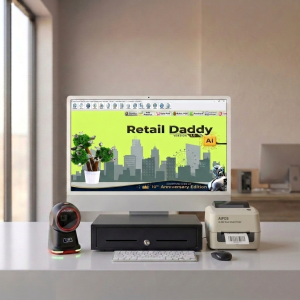
Out of the billing software options I’ve worked with alongside the At-602, Retail Daddy billing software is the one I’d recommend pairing it with for most retail setups. It’s not just that it “supports” the printer — the way the workflow is built around it makes a real difference at the counter.
A few practical reasons this pairing works well:
- Retail Daddy has native support for dual-mode thermal printers like the At-602, so you’re not hunting for third-party drivers or workarounds
- It comes with a built-in barcode label designer, letting you set label size, layout, MRP, batch number, and expiry fields without needing separate label design software
- You can print barcodes directly from inventory or purchase entry with a single click — when new stock comes in, the label goes straight to the At-602 without manual formatting each time
- The driver handling is stable enough that print errors and misaligned jobs are rare in daily use
- It fits naturally into retail formats like grocery stores, pharmacies, apparel shops, and general stores, which is exactly where the At-602 tends to be used
- Billing is GST-compliant, so label printing and invoicing stay in sync without extra manual reconciliation
In practice, this means when you scan a new product into Retail Daddy at billing or during stock entry, it can trigger the At-602 to print a fresh label instantly, using whatever layout you’ve already set up — no retyping product details into a separate label tool. That single workflow shortcut is what actually saves time at a busy counter, far more than any spec on a data sheet.
Who Should Buy This Printer
The At-602 makes the most sense for small to mid-sized retail stores — think a supermarket printing a few hundred labels a day, a pharmacy that needs both batch/expiry labels and receipt-style printing, or an apparel store labelling new stock a few times a week. If you’re running a large distribution warehouse printing thousands of labels every hour, you’ll likely outgrow this machine and want something built for heavier industrial duty. But for the counter-level, day-to-day printing that most retail businesses actually need, it’s a sensible, budget-conscious choice.
Frequently Asked Questions
Can the AtPOS At-602 print both barcode labels and regular receipts?
It’s designed primarily as a barcode/label printer rather than a receipt printer. For billing receipts, most stores pair it with a separate thermal receipt printer alongside the At-602 for labelling.
Does it work with billing software other than Retail Daddy?
Yes — it works with most billing software that supports standard barcode/label printing through Windows drivers or ESC/POS-style commands. Retail Daddy is simply the pairing that offers the smoothest workflow based on hands-on use.
What label sizes does the At-602 support?
It supports a range of die-cut and continuous label widths up to 108 mm, which covers most standard retail label sizes. Always confirm the exact label size you need against the current spec sheet before purchase.
Do I need the ribbon for every print job?
No. Ribbon is only required in thermal transfer mode. If you’re using direct thermal mode with heat-sensitive labels, no ribbon is needed at all.
Is this printer suitable for a pharmacy that needs long-lasting batch and expiry labels?
Yes — that’s actually one of its better use cases. Switching to thermal transfer mode with a ribbon gives you labels that hold up much better over time compared to direct thermal alone.
Conclusion
The AtPOS At-602 isn’t trying to be everything to everyone, and that’s honestly its strength. It covers the two printing methods most retail stores actually need, handles everyday counter volume without much fuss, and once it’s paired with billing software that’s actually built to work with it — Retail Daddy, in my experience — the label printing part of running a store stops being something you think about. It just happens in the background, which is really all you want from a piece of hardware like this.
Categories & Tags
Similar Downloads

Leave a Reply